
Paper menus need reprinting whenever prices or dishes change. They can also leave visitors guessing when the menu isn’t available in a language they understand. A QR code menu gives guests a quick way to browse on their phones, while letting restaurants update menu details without replacing every printed code.
This guide explains how QR code menus work, how to create one, and how to make it easy for guests to scan and use.

Quick answer: Prepare a digital menu, create a dynamic QR code that links to it, add clear instructions, test the code on different phones, then print and place it where guests can easily see it.
What is a QR code menu?
A QR code menu is a scannable code that opens a restaurant’s menu in a phone’s browser. Guests point their camera at the code and tap the link that appears. They don’t need to download an app or create an account.
The QR code is just the link. The menu page it opens can be a PDF or an interactive digital menu with categories, dish photos, allergen details, and options to request service.
Static vs. dynamic QR codes
Choose the type of QR code before printing it. The main difference is whether you can change the destination link later.
| Feature | Static QR code | Dynamic QR code |
|---|---|---|
| How it works | The destination link is built into the code | The code points to a link you can manage |
| Changing the menu link | You need to create and print a new code | You can update the link while keeping the printed code |
| Scan analytics | Usually not available | Often available |
| Best for | One-time use or events | Restaurant menus that change over time |
For most restaurants, a dynamic code is more practical. You can update prices, seasonal dishes, or specials without replacing the printed table cards.
How to create a QR code menu in 7 steps
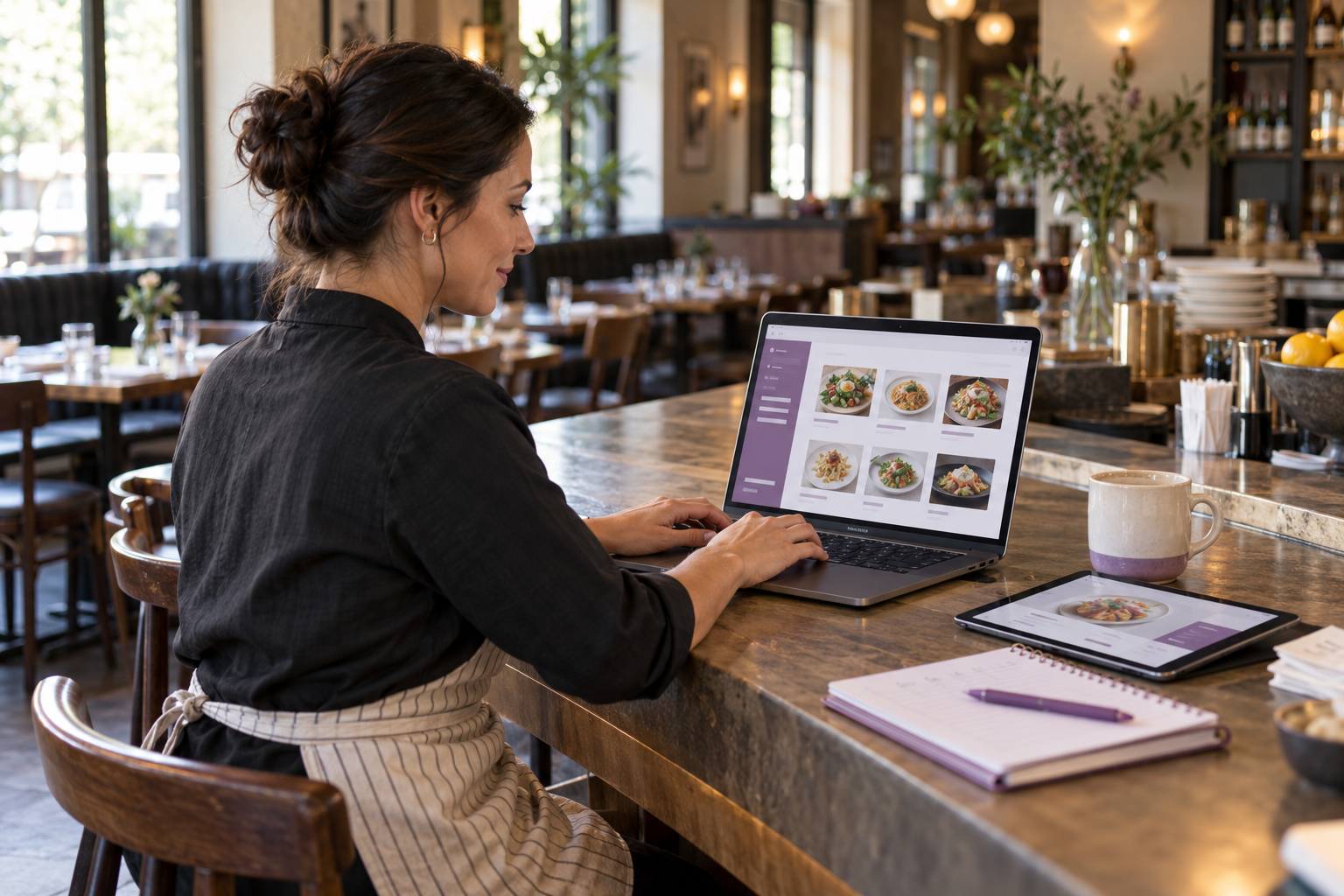
1. Prepare your menu content
Gather the information guests need to choose: item names, prices, short descriptions, photos, categories, and allergen details. Keep descriptions concise so they’re easy to read on a phone. Check which allergen information you’re required to provide.
2. Choose between a PDF and an interactive menu
A PDF can be quick to prepare, but it may be awkward to read on a phone. Guests often need to zoom in, and each update means creating and uploading a new file. An interactive menu is designed for mobile browsing and can be edited as your menu changes.
| Consideration | PDF menu | Interactive digital menu |
|---|---|---|
| Reading on a phone | Guests may need to zoom | Designed for mobile screens |
| Updating prices | Upload a revised file | Edit the menu online |
| Photos and allergens | Fixed in the document | Can be shown with each item |
| Guest actions | Usually view only | May include service or bill requests |
3. Build your digital menu
Create clear categories such as starters, mains, drinks, and desserts. Add each item’s name, price, description, and photo. Mark unavailable dishes so guests don’t choose something they can’t order. Before sharing the menu, open it on your own phone and check that it’s easy to browse.
4. Generate your QR code
Create a code that links directly to your digital menu and download it in a high-resolution format. SVG or a 300 dpi PNG is suitable for print. If guests can request service by table, use a different code for each table so staff can see where the request came from.
5. Add your branding and instructions
Use your restaurant’s colours while keeping strong contrast between the code and its background. Add a short instruction so guests know what to do and what they’ll get. For example: “Scan to view our menu” or “Scan to view the menu and request service.”
A QR code without instructions is just a pattern. Tell guests what will happen when they scan it.
6. Test the code before printing
Check the code with at least one iPhone and one Android phone, including an older device if possible. Test it in your restaurant’s lighting, scan it from a normal seated position, and try loading the menu using mobile data with Wi-Fi turned off.
7. Put the code where guests will see it
Place QR codes where guests naturally look: table tents, table stickers, coasters, the bar, entrance windows, or takeaway packaging. Choose materials that can handle regular cleaning. Keep the code visible and within easy reach.
QR code menu design tips

Make it large enough: Table codes should be at least 2.5 × 2.5 cm. Use larger codes for windows or walls.
Use strong contrast: A dark code on a light background is generally easier to scan than pale or inverted colours.
Leave a clear margin: Keep the area around the code free of text and graphics.
Use logos carefully: If you add a logo, keep it small and check that the code still scans reliably.
Make the menu easy to read: Use clear type and organize items into useful sections.
Choose a visible spot: Keep the code at eye level or within easy reach, away from cutlery and condiments.
QR code menu examples by venue
The best format depends on how guests use the space.
Café table sticker: A wipeable sticker can link to the menu and daily specials.
Bar coaster: Guests can scan while they wait for a drink. Staff can update happy-hour prices in the digital menu.
Beach club tag: A weather-resistant code on a sunbed or umbrella can help guests browse drinks or request service.
Hotel room service card: A card in the room can open the current dining menu and show dish photos.
Multilingual menu: One code can open a menu that guests can read in their preferred language.
Food truck window: A large code lets people browse while they’re in line, helping them decide before they reach the counter.
Common QR code menu mistakes to avoid
Linking to a large PDF that loads slowly on mobile data.
Printing a static code even though the menu link may change.
Making the code too small or using low contrast.
Leaving out instructions so guests don’t know what scanning does.
Forgetting allergen details in the digital menu.
Having no alternative for guests without a working phone. Keep a few printed menus available.
Changing the menu link without checking that the printed codes still work.
How do guests scan a menu QR code?

Guests open their phone’s camera, point it at the code, and tap the link that appears. On some older Android phones, they may need Google Lens or a QR scanner. The menu then opens in the browser.
Frequently asked questions
Can I create a QR code menu for free?
Yes. Some menu platforms offer a free plan. Call the Service also offers a free plan, with paid plans available for restaurants that need additional features.
Do guests need an app to scan a menu QR code?
No. Most modern smartphones can scan QR codes using the built-in camera, and the menu opens in the browser.
Can I update the menu without changing the QR code?
Yes, if you use a dynamic QR code. The printed code can stay the same while you update the menu link or content.
How many QR codes does a restaurant need?
One code can open the menu. If guests can request a waiter or bill and you want each request linked to a specific table, use a unique code for each table.
Should I keep paper menus?
It’s useful to keep a few printed menus for guests who don’t have a phone available or whose battery has run out.
Get started with a QR code menu
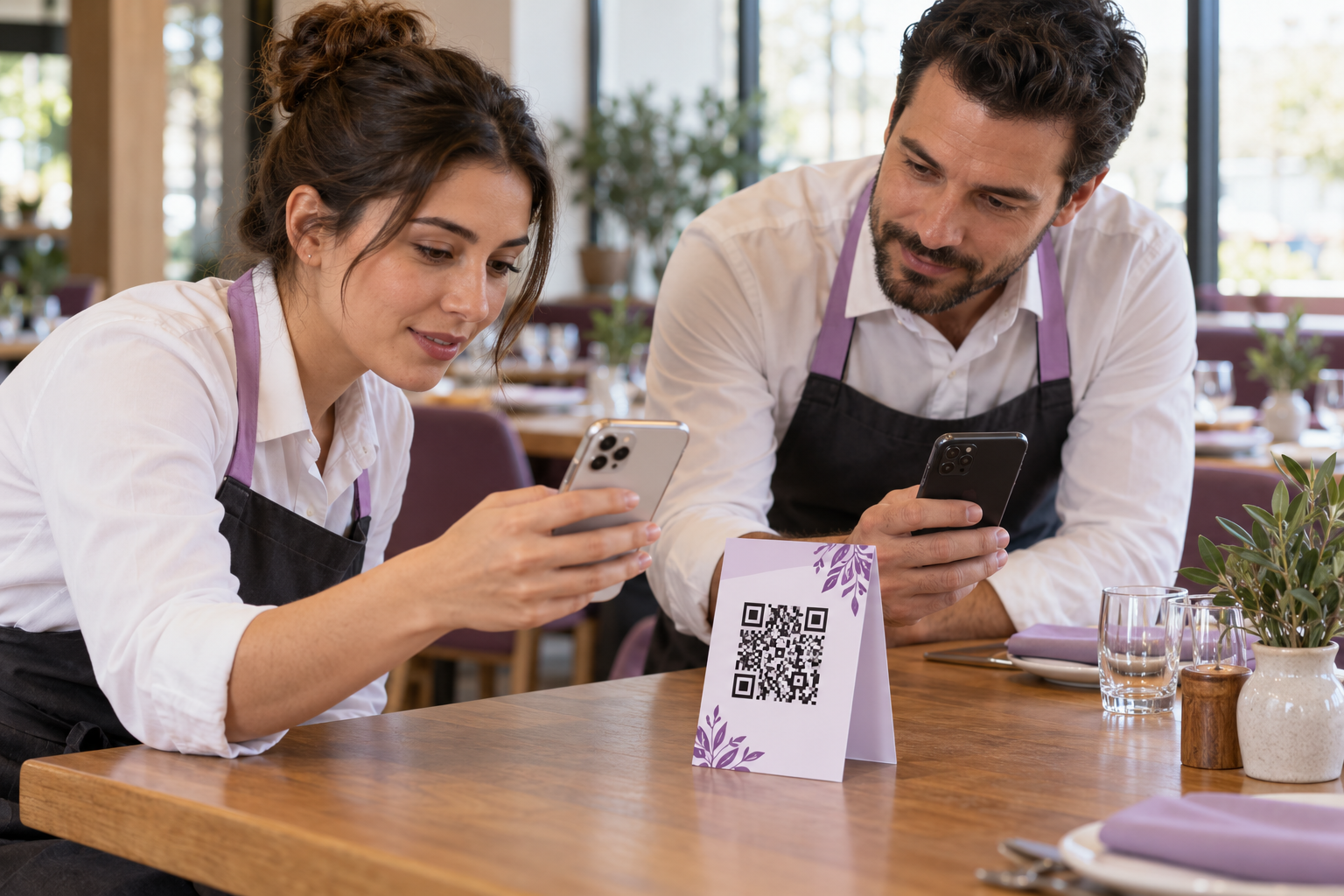
A QR code menu can make it easier for guests to browse and for restaurants to keep menu information current. Prepare a clear digital menu, choose a dynamic code, test it before printing, and put it somewhere guests can easily find.
With Call the Service, restaurants can create a digital menu, generate table QR codes, and let guests request staff from their phones. Choose the plan that fits your restaurant’s needs.